How to create a hidden folder on windows 10 and 11
If you want to keep some files or folders away from prying eyes, you can create a hidden folder on your Windows 10 or 11 computer. A hidden folder is not visible in File Explorer unless you enable the option to show hidden files and folders. Here are the steps to create a hidden folder on Windows 10 and 11:
1. Open File Explorer and navigate to the location where you want to create a hidden folder. You can also create a new folder by right-clicking on an empty space and selecting New > Folder.
How to create a hidden folder on windows 10 and 11
If you want to keep some files or folders away from prying eyes, you can create a hidden folder on your Windows 10 or 11 computer. A hidden folder is not visible in File Explorer unless you enable the option to show hidden files and folders. Here are the steps to create a hidden folder on Windows 10 and 11:
- Open File Explorer and navigate to the location where you want to create a hidden folder. You can also create a new folder by right-clicking on an empty space and selecting New > Folder.

- Name the folder as you wish, then right-click on it and select Properties.
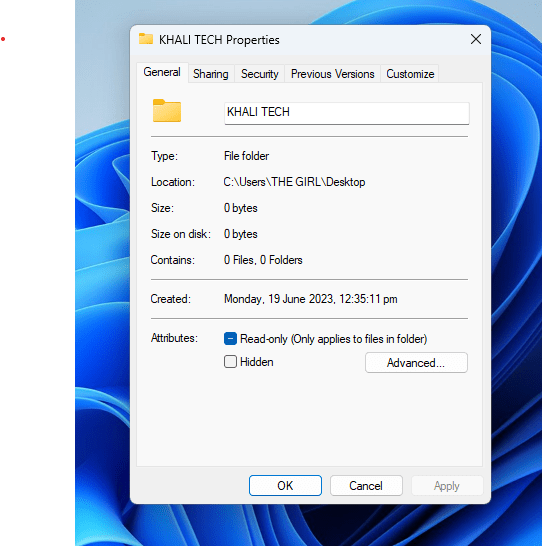
- In the Properties window, go to the General tab and check the box next to Hidden. Click Apply and then OK.

- The folder will disappear from File Explorer. To view it again, you need to go to the View tab in File Explorer and check the box next to Hidden items.


Alternatively, you can also create a hidden folder using Command Prompt. Here are the steps:
- Open Command Prompt by typing cmd in the search box and hitting Enter.
- Type cd followed by the path of the location where you want to create a hidden folder. For example, cd C:\Users\YourName\Documents
- Type mkdir followed by a dot (.) and then the name of the folder. For example, mkdir .SecretFolder
- The folder will be created with a dot (.) in front of its name, which makes it hidden by default. You can access it by typing its name in File Explorer’s address bar.


 Khali tech